Start here: what channel keywords actually do
Channel keywords help YouTube understand your channel’s broad subject, but they’re only a limited, indirect discovery signal. How To Set Up YouTube Channel Keywords And Settings The Right Way starts with accurate channel information, not a long string of terms. For YouTube search, each video’s title and description, how viewers respond, click-through rate, retention, and the channel’s topical consistency matter more than a stuffed channel keyword list.
Quick takeaways:
- Choose a focused set of YouTube channel keywords that genuinely describe your content.
- Complete your channel identity fields, including name, handle, description, and branding.
- Choose the correct Audience setting, including Made for Kids where applicable.
- Set your language and country based on your real audience and business.
- Optimize each video separately, then review YouTube Analytics for useful patterns.
- Protect channel access with role-based permissions and secure owner accounts.
A careful YouTube channel setup gives viewers and YouTube a clearer picture of what you publish. It can’t guarantee rankings, views, subscribers, or revenue. If you run a small business, treat channel settings as the foundation: a local fitness coach can clarify who their videos help, but each workout video still needs a strong topic, title, and viewer experience.
This guide covers YouTube Studio, channel keywords, branding, audience controls, localization, security, and measurement. Use setting up YouTube channel keywords as a practical checklist, then make changes when your content or audience shifts. The goal is clarity and consistency, not a promise of instant growth.
How To Set Up YouTube Channel Keywords And Settings The Right Way: add channel keywords in YouTube Studio
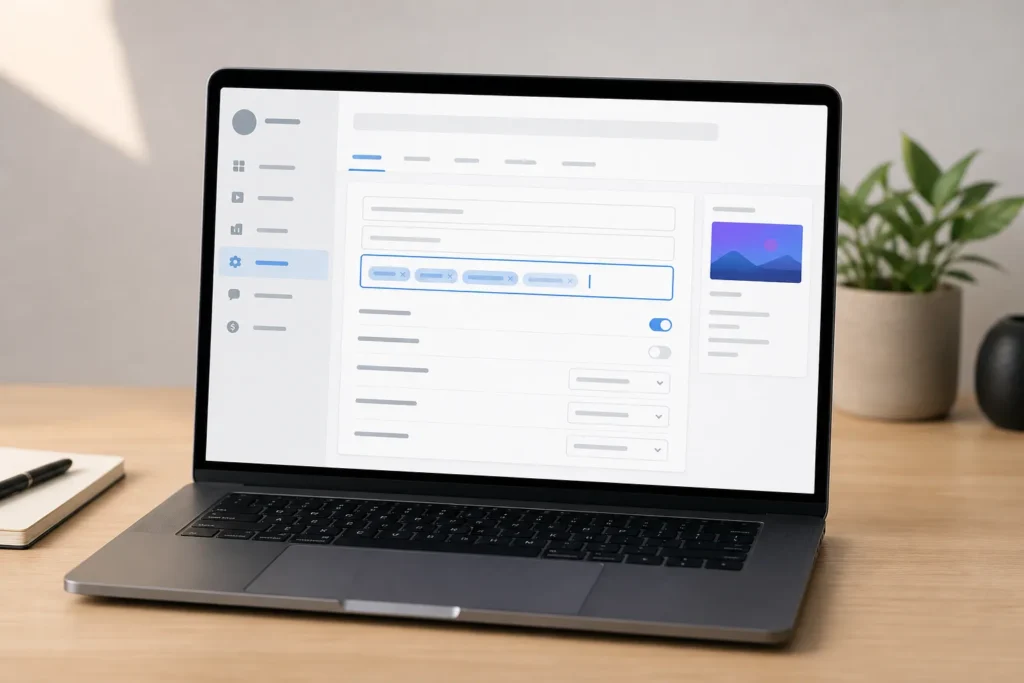
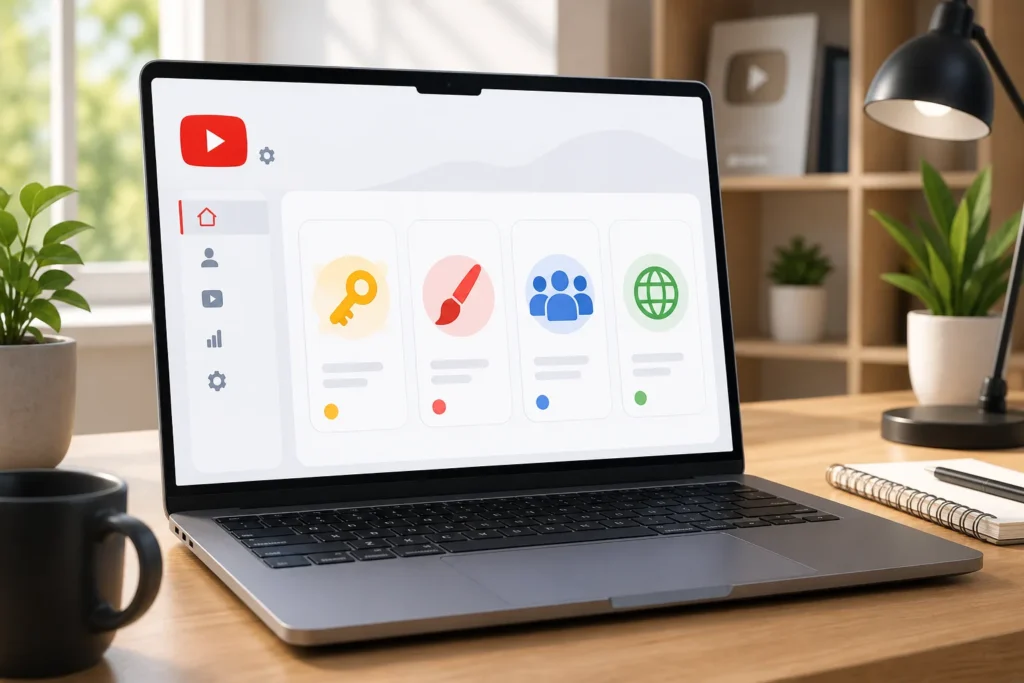
On desktop, your YouTube channel keywords are found in YouTube Studio’s Channel settings. YouTube can change menu names or placement, so if the steps look different, look for the Channel area under Settings and its Basic info tab.
- Sign in to the Google account that manages your channel.
- Abre YouTube Studio.
- Select Settings from the Studio menu.
- Elige Channel, then open Basic info.
- Enter your YouTube channel keywords as short, accurate phrases.
- Guardar your changes.
If the field isn’t visible in the mobile YouTube Studio app, try a desktop browser. You can also open a mobile browser and request its desktop view to reach the full Channel settings area. The Studio app remains useful for routine channel checks, but some settings may be unavailable or differently labeled.
YouTube channel keywords are short phrases describing your channel’s core subjects, audience, format, or brand. For a local fitness coach, a relevant set might be “strength training for beginners, home workouts, personal trainer [city], mobility exercises.” Celebrity names or viral topics don’t belong there unless the channel genuinely publishes about them.
Include your channel name and close brand variations only when they’re genuinely associated with you or your business. Don’t repeat the same phrase, add competitor brands, or stuff in unrelated subjects. YouTube channel keywords aren’t video tags, and neither replaces a clear title and description for each upload. Keep the list concise enough that every phrase still describes the channel as a whole.
Setting up YouTube channel keywords means choosing accurate terms, not finding a loophole. Revisit your entries when your channel changes direction, rather than adding every new video topic to a channel-wide list.
How to research and group channel keywords without stuffing
Research YouTube channel keywords before you enter them. Start with what you actually publish, then compare your wording with the phrases viewers use. This keeps channel terms connected to real videos instead of speculative topics.
- List your main content pillars, such as bookkeeping tutorials, invoicing, and accounting software.
- Write the words a likely viewer might use to describe each topic or problem.
- Compare those phrases with your current uploads and planned series.
- Select only terms that accurately describe the channel, not just one passing idea.
Try YouTube autocomplete by entering a topic in the YouTube search bar and noting relevant suggestions. Treat those suggestions as language ideas, not proof that a term has strong demand or will perform well. Keyword research tools such as vidIQ and TubeBuddy can offer topic ideas and competitive context, but their suggestions still need human judgment and must match videos you can credibly make.
YouTube Analytics can reveal what already attracts search viewers. Open the Reach tab for a relevant video and review the YouTube search traffic source and available search terms. Look across several uploads rather than assuming one term explains the whole channel.
A useful grouping model is: brand terms; one to three core topics; supporting subtopics; audience or location terms where relevant; and video-format terms only if that format is consistent. For a bookkeeping business, core terms might cover small-business bookkeeping, accounting software tutorials, invoicing, and tax preparation basics. Don’t add investing or real estate unless the channel consistently covers those subjects.
Review the list after a change in direction, a new recurring series, or a sustained shift in search traffic. Your YouTube channel keywords should reflect the channel you’re building now, not a collection of topics you might cover someday.

Complete your channel identity before publishing more videos
A coherent channel identity helps visitors understand who your videos are for and why they might subscribe. Before you publish more, check that your name, description, visuals, and homepage tell the same story.
Elige una Channel name that’s recognizable, easy to say, and connected to your creator or business identity. Avoid frequent changes that can confuse returning viewers. Choose a readable Channel handle that matches your brand where possible. YouTube generates a handle-based Channel URL, so make the handle easy to recognize and share.
Write your Channel description with the viewer promise first. Then name your main topics, intended audience, publishing format, and relevant business context. Don’t cram in repeated phrases. For example, a local plumbing business could use this framework: “We help homeowners in [service area] understand common plumbing problems. Watch practical repair explainers, maintenance walkthroughs, and project updates. Check our service information to see whether we cover your area.”
Use a recognizable Profile picture and a Channel banner that makes the subject or upload expectation clear. Keep visual cues consistent across thumbnails so a viewer can recognize your videos without making every image identical.
A Channel trailer introduces the channel to unsubscribed visitors. A featured video can orient returning subscribers. Make either one quickly show the value of watching another video, rather than relying on a long company introduction.
Usos Featured sections to organize uploads, popular videos, Shorts, playlists, and topic-based collections. A bookkeeping channel, for instance, might place invoicing tutorials next to a playlist on accounting software. These sections create a useful next step for visitors instead of leaving the homepage as a static grid of recent uploads.

Which channel settings need your attention?
Review the Basic info tab and Advanced settings as your channel develops. These areas affect channel-wide context, but many video details still need to be checked separately for every upload.
Set Country of residence to the real country connected to your channel or business. It supports account context; don’t choose a different country just to chase viewers. Set Default language to the primary language used in your videos and for your main audience. If you serve genuinely multilingual viewers, add translated channel names and descriptions where YouTube provides translation options.
Regional choices should follow the language you use, the availability of your product or service, and what viewers need. A local service business should name its service area in its description and videos rather than implying it serves every country. This is more useful to a nearby customer and more accurate for the channel.
For Channel category, check the applicable Studio menu when the option is available and choose the closest honest subject. Don’t confuse this with the category selected for an individual video during upload. Menus and available settings can vary, so confirm the current option in Studio.
Check upload defaults, but don’t assume they replace a per-video review. For each upload, confirm the title, description, thumbnail, Audience setting, language, category, subtitles, and visibility. Use the YouTube Studio app for routine checks and upload management. Switch to a desktop browser when a setting isn’t available or has a different label in the app.
Channel-wide settings give your uploads a consistent starting point. Video details still need to match the specific subject and intended viewer for each piece of content.
How should you choose the Made for Kids audience setting?
The Audience setting is a compliance decision, not a growth tactic. You must accurately tell YouTube whether content is Made for Kids under applicable COPPA-related requirements. The Made for Kids designation should reflect the content and intended audience, not a guess about which setting might bring more views.
Review the intended audience, subject matter, characters or other child-focused elements, language, and the viewers you actually target. If your whole channel serves children, set the audience at channel level. If only certain videos are directed to children, review the setting for each video. A family-friendly general-audience tutorial isn’t automatically Made for Kids simply because children could watch it.
There are practical trade-offs. Videos marked Made for Kids can have restricted features, including personalized advertising and certain engagement or navigation features such as comments, notifications, cards, and end screens. Feature availability can depend on YouTube’s current rules and the relevant content or account setting, so review the current guidance in Studio.
Don’t select an audience setting to seek more reach or avoid restrictions. If you’re unsure, consult YouTube’s current policy guidance and get appropriate professional advice for your business. The right answer depends on the actual content and intended audience, not the channel’s revenue goals.
Plan a viewing path that works within any restrictions. Where permitted, organize related videos into playlists and make your channel homepage easy to browse. You can also use a clear verbal call to action, such as telling viewers which related tutorial to watch next. That way, a restricted end screen doesn’t leave the viewer without a next step.
Set up safe channel access for a team or agency
The account owner should retain ownership and never share a personal Google password with an editor, virtual assistant, agency, or freelancer. Use Channel permissions to grant each collaborator only the access needed for their work.
- Abre YouTube Studio using the owner account.
- Select Settings, then choose Permissions.
- Invite the collaborator’s Google account.
- Assign the narrowest role that permits the agreed task.
- Opinión the access after the project ends and remove it if it’s no longer needed.
For example, someone editing uploads or reviewing Analytics may not need authority to manage the channel itself. Reserve ownership-level authority for trusted account holders who genuinely need it. The available roles and labels can differ depending on whether the channel uses a Brand Account or another account arrangement, so read each permission description in Studio before sending an invitation.
Keep the owner account secure. Enable two-step verification, keep recovery information current, remove former collaborators promptly, and check access before a major launch. Those steps reduce the chance that a past project or an outdated recovery method becomes a channel problem.
A professional audit can help identify setup gaps, but you should stay in control of ownership, billing, recovery details, and final publishing authority. Give collaborators clear responsibilities and a clear end date for access. That keeps an agency or freelance workflow useful without handing over more control than the work requires.
How To Set Up YouTube Channel Keywords And Settings The Right Way: add keywords for each video
Add the main topic naturally to the video title and the opening lines of its description. Use relevant tags in the video Details area when they help clarify spelling variations, names, or closely related terms. YouTube channel keywords describe the channel as a whole; each video should target one clear viewer question or intent.
- Elige the main search phrase that matches the video’s actual answer.
- Write a precise title that sets a truthful expectation.
- Describe the video’s promise and key points near the start of the description.
- Select a thumbnail concept that communicates the same promise.
- Agrega accurate tags where they clarify names or variations.
- Verifique language, category, playlist, and Audience setting before publishing.
Example title: “How to Create an Invoice for a Small Business.” A matching thumbnail could show a clean invoice mockup with the words “Create One Fast.” The title and image should describe the video you deliver, not a result it can’t promise.
After publishing, use Analytics to see whether the package is working. Impresiones are the times YouTube shows a video thumbnail. Click-through rate (CTR) is the percentage of impressions that become views. Retention shows how long viewers continue watching. Read these signals together: a clear thumbnail may earn clicks, but the video still needs to keep the promise made by its title.
Use Test & Compare where it’s available for eligible thumbnail testing. Compare a meaningful difference, such as a new promise or visual focal point, rather than making tiny random edits. The “YouTube second rule” isn’t an official YouTube rule. Treat the opening seconds as a practical chance to confirm the title and thumbnail promise, show the problem or result, and remove a slow introduction.
Measure results and build toward subscribers and revenue
Use YouTube Analytics to find patterns after you update the channel. In Reach, review impressions and YouTube search terms. In Engagement, look at retention. In Audience, compare returning and new viewers. Review several uploads together rather than judging a channel setting by the performance of one video.
There’s no safe shortcut to 1,000 subscribers. Publish useful videos for a defined audience, make each title and thumbnail clear, connect related videos with playlists and end screens when available, and ask viewers to subscribe after you’ve delivered value. Don’t buy views, subscribers, likes, or comments. Artificial engagement can mislead your decisions and put the channel at risk.
No fixed view count guarantees $10,000 a month. Earnings depend on RPM, audience location, topic, ad demand, video length, viewer behavior, and income beyond ads. RPM means revenue per thousand views after YouTube’s share. CPM means advertiser cost per thousand ad impressions, so it isn’t the same as the amount you receive.
Under the YouTube Partner Program announcement dated August 10, 2026, full ad revenue sharing through January 31, requires 1,000 subscribers plus either 4,000 public watch hours in months or million public Shorts views in days. From February 1, 2027, new applicants need 1,000 subscribers plus either 8,000 public watch hours or million Shorts views. Existing YPP channels retain status. The fan funding and Shopping tier remains at subscribers plus 3,000 watch hours or million Shorts views. Shorts feed views don’t count toward public watch-hour eligibility.
Since August 24, 2026, public view counts begin from the first frame, while earnings and YPP eligibility still use engaged views. Since October 1, 2026, re-uploaded Shorts without meaningful changes receive less Shorts feed reach. These details make it especially useful to track eligible views and original content rather than relying on a public view count alone.
Take four steps next: audit Settings and Customization, replace unfocused channel terms, improve the next three video packages, and review Analytics after publication. Getting your YouTube channel keywords and settings right is an ongoing process: adjust the channel when your content and viewer data justify it. DigiSphere is led by Michael, a Fiverr Top Rated Seller with 15+ years in digital marketing, 10,000+ completed orders, 5,000+ five-star reviews, and 6,000+ YouTube creators optimized. If you want an outside perspective, request a free YouTube channel audit from DigiSphere at digispheresl.com.
Principales puntos a tener en cuenta
- Use YouTube channel keywords to describe your channel accurately, not to stuff in every possible search term.
- Complete your channel identity and localization settings, and review upload details for each video.
- Choose the Audience setting based on the content and intended viewers, not growth goals.
- Protect ownership and give collaborators only the permissions their work requires.
- Use Analytics across several uploads to guide improvements to your next video packages.
Preguntas frecuentes
Where to add keywords in YouTube videos?
Use the main topic naturally in the video title and opening lines of the description. Add accurate tags in the video Details area when they clarify spelling variations, names, or closely related terms.
How many views do you need to make $10,000 a month on YouTube?
There’s no fixed view count because earnings vary with RPM, audience location, topic, ad demand, viewer behavior, and income beyond ads. RPM is revenue per thousand views after YouTube’s share, so estimate using your own Analytics rather than a universal view target.
What is the YouTube second rule?
It isn’t an official YouTube rule. The opening seconds are a practical chance to confirm the title and thumbnail promise, show the problem or result, and avoid a slow introduction.
How to get subscribers on YouTube fast?
There’s no safe shortcut or guaranteed timeline. Publish useful videos for a clearly defined audience, make titles and thumbnails accurate, connect related videos, and ask viewers to subscribe after delivering value.
Where do you add channel keywords in YouTube Studio?
On desktop, open YouTube Studio, select Settings, choose Channel, and open Basic info. If the field isn’t visible in the mobile app, try a desktop browser or a mobile browser in desktop view.


 English
 Español
 Deutsch
 Français
 Italiano
 العربية